Skyrim
Skyrim edition and location
The project assumes we're moding the Steam version Skyrim Anniversary Edition, on
Windows, installed on disk D:\ in:
D:\SteamLibrary\steamapps\common\Skyrim Special Edition
Finding your Skyrim version
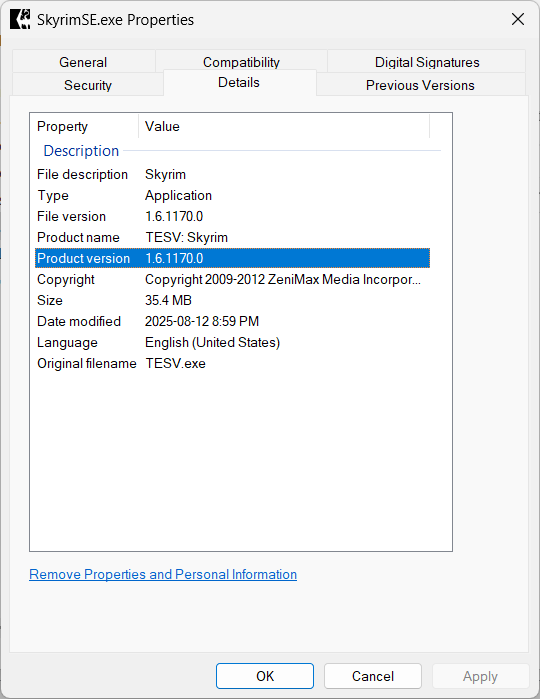
Many mods are Skyrim version specific, so you should always know what your version is:
-
find the
Skyrim.exeyou are usingD:\SteamLibrary\steamapps\common\Skyrim Special Edition -
right-click it in File Explorer and select
Properties - go to the
Detailspage - check the
Product versionvalue
For example, the Skyrim.exe version in the image bellow is 1.6.1170.0.
Fixing Windows 11 scaling
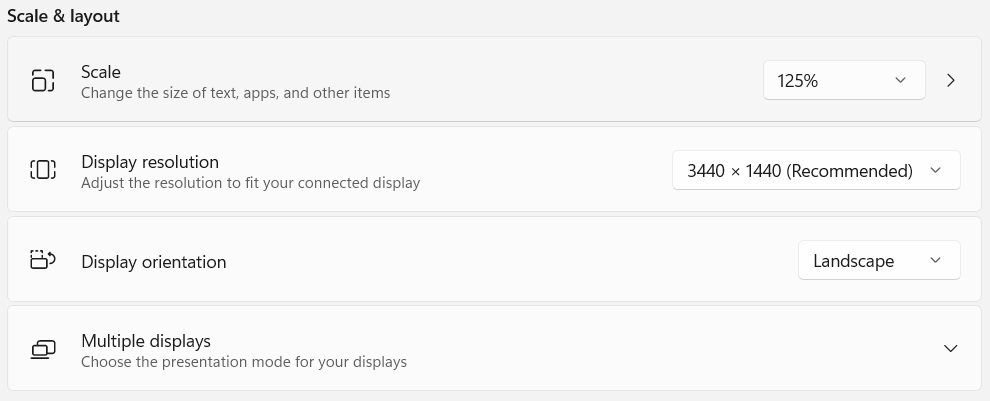
If you've configured your Windows to use a scale different than 100%, your
Skyrim window might get bigger compared with what's in your game setup.
You can try these steps to fix this:
-
find the
Skyrim.exeyou are using<SOURCE_DIR>\mo2\stock_game\Configure the proper Skyrim.exe
You must setup the
High DPI Settingfor the actualSkyrim.exeyou are going to run. This Wabbajack compilation uses the game_stock configuration, so you must change theSkyrim.execopy from<SOURCE_DIR>\mo2\stock_game\. -
right-click it in File Explorer and select
Properties -
go to the
Compatibilitypage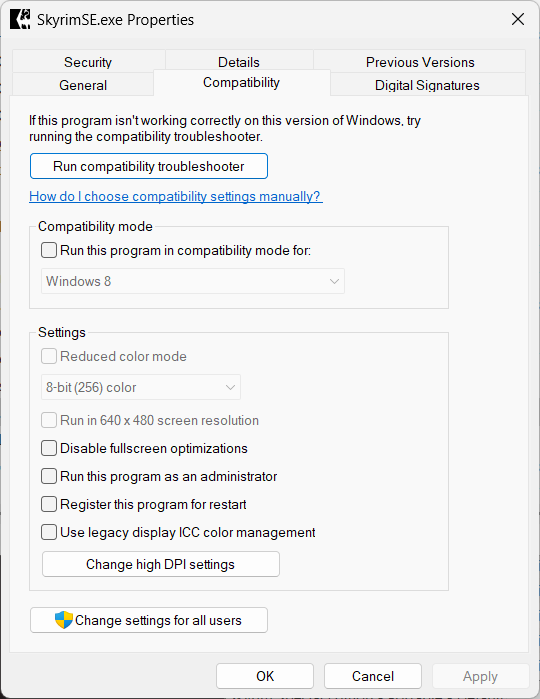
-
click the the
Change high DPI settings -
in the
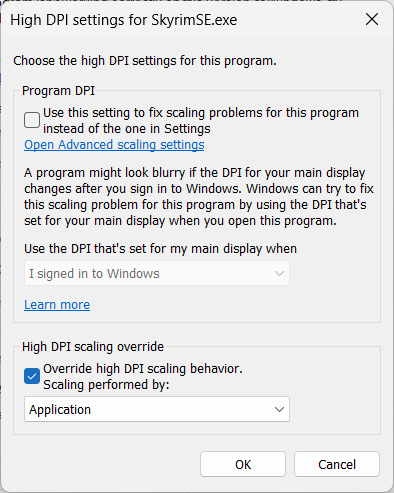
High DPI settingsdialog:- check the
Override high DPI scaling behaviour - select
Applicationin theScaling performed by:drop-down box - click
OKto close the dialog
- check the
-
click
OKto close thePropertiesdialog